¶ KeyShot 2025 Installation Guide
¶ Introduction
Direct instructions from Keyshot are here:
https://manuals.keyshot.com/keyshot2023/Content/manual/installation/pro-floating-installation/keyshot-pro-floating-installation/index.html
This page provides a comprehensive walkthrough for downloading, installing, and activating KeyShot 2025 for the UK College of Design, covering:
- KeyShot Studio (standalone application)
¶ Create or Login to KeyShot account
- Navigate to https://www.keyshot.com/ and click "Sign In".
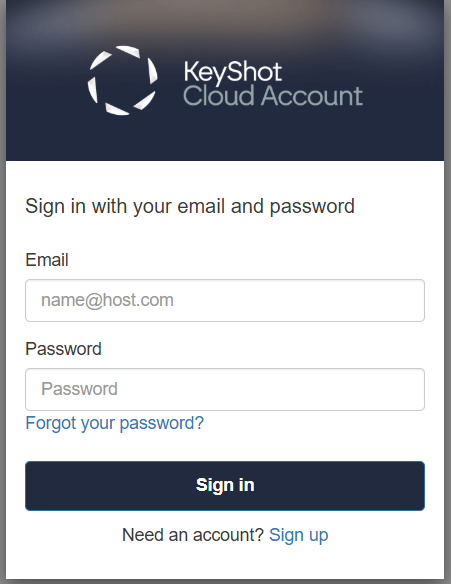
2. Log in to your KeyShot Cloud Account on the official KeyShot website. Create a new account by clicking "Sign Up" if you don't have an account already.
¶ Downloading KeyShot Studio (2025)
- Navigate to the downloads section to obtain KeyShot Studio 2025 installer
¶ Installing KeyShot Studio (2025)
¶ Windows
- Run the downloaded installer.
- Accept the End-User License Agreement (EULA).
- Choose installation scope: for all users or just for the current user.
- Specify folders for:
- Program installation
- Resource files (textures, environments, etc.)
- Allow KeyShot through your firewall if prompted
¶ First Launch & License Activation
- If an earlier KeyShot version exists, a Migration Assistant may help you port custom settings and license info.
- On launch, choose:
- Activate License — entering your serial code or subscribing.
- Select I Have a Floating license.
- When asked to Enter the License Server, the server path is enter:
- 27010:codapps.ad.uky.edu
The port number at the front MUST be '27010' recognize the server*
- 27010:codapps.ad.uky.edu
¶ Trouble Shooting
- If your keyshot is not using your GPU:
- Go to computer settings → System → Display →
- Scroll down to graphics
- Add an app → add keyshot from deskop folder
- Click the dropdown and add your specific computer GPU
- Reset your compter and reopen keyshot
- If your keyshot is still not using your GPU:
You most likely need to update your GPU Bios- https://codwiki.uky.edu/student-computer-support
Scroll down to "Update Graphics Drivers" and follow directions
- https://codwiki.uky.edu/student-computer-support
¶ Material Resources
- Keyshot Cloud Materials - Free!
Inside keyshot located in the bottom left corner of the screen- Material Graphing - this can make materials much more realistic
Short explanation: https://youtu.be/AaUJO6HoSrA?si=6ia6TVNIr5ZVyVAa
Longer step by step: https://youtu.be/K6liInjrE48?si=LchEoE24ys1rhoZj - Specific Material Tutorials
Fuzz: https://youtu.be/8wUl2OtRvvk?si=ryjRytj7MKWYPNSa
Realistic Wood: https://youtu.be/52M59CNRqbM?si=sUBAOyL0Tk_4fsco
Plastic: https://youtu.be/jLKoCXKGi6k?si=FNbNQ26fiJeXyxAi
Metal: https://youtu.be/lm3EOYJdjX8?si=8OPhKFPqcfRKN4Mx
- Material Graphing - this can make materials much more realistic